
Try a BEATCAMP Mission
What you see below is exactly what your Junior DJ will see in their account!
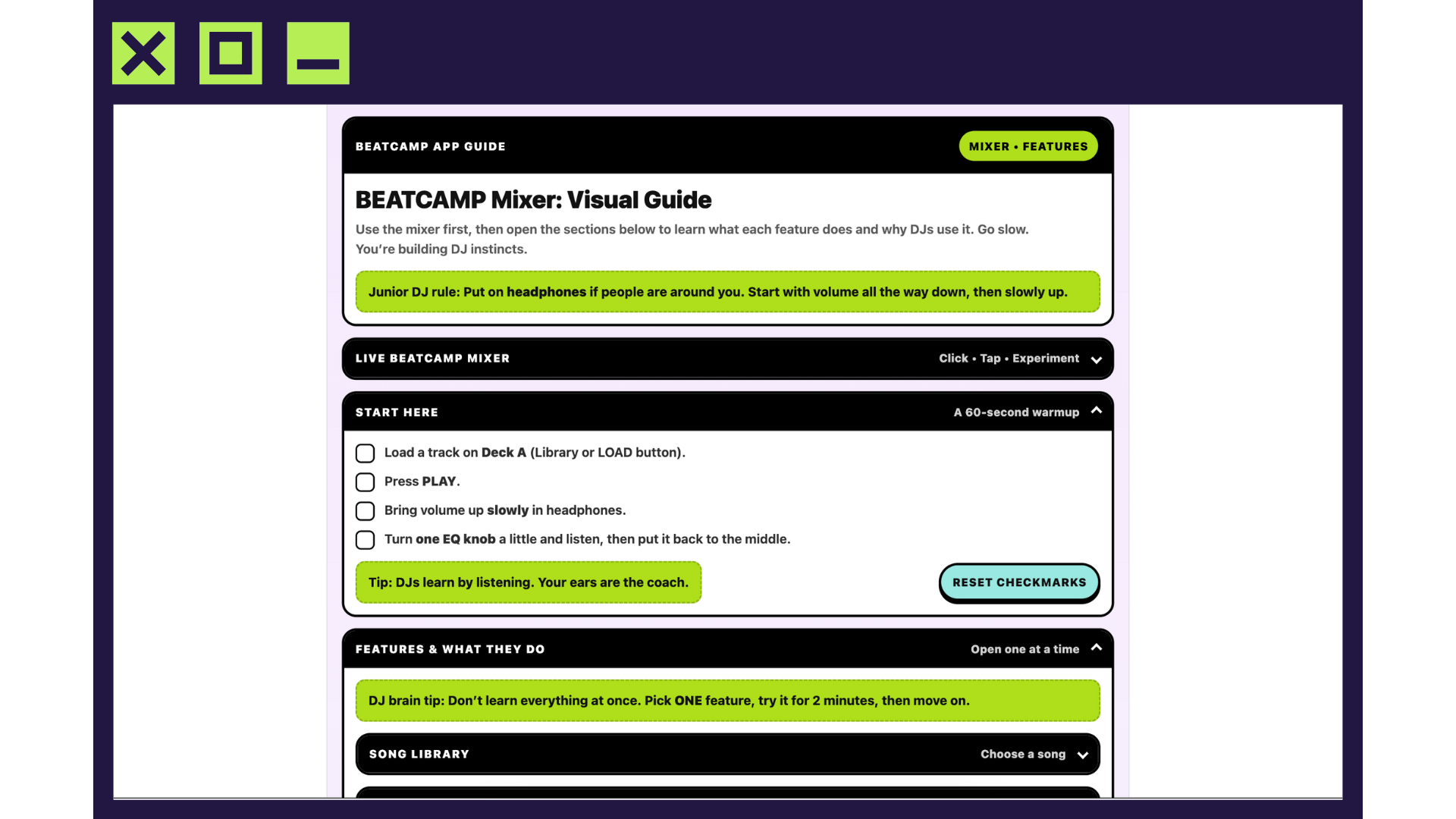
BEATCAMP App Guide
Mixer • FeaturesBEATCAMP Mixer: Visual Guide
Use the mixer first, then open the sections below to learn what each feature does and why DJs use it. Go slow. You’re building DJ instincts.
Mission Completed
Deck AMixer Notice
Mobile DeviceThe Mixer is optimized for tablet + desktop
You can still level up on mobile using BEATCAMP Games. Tap below to open the Game Library.
Live BEATCAMP Mixer Click • Tap • Experiment
Start Here A 60-second warmup
-
Load a track on Deck A (Library or LOAD button).
-
Press PLAY.
-
Bring volume up slowly in headphones.
-
Turn one EQ knob a little and listen, then put it back to the middle.
Features & What They Do Open one at a time
Song Library Choose a song
What it is: The song list. This is where you pick music to load onto a deck.
Why DJs use it: DJs don’t “random shuffle.” They build a vibe on purpose.
Try this: Click 3 songs. Which one feels like an “intro”? Which one feels like a “dance floor” moment?
Deck A & Deck B Two music players
What it is: Two places to play music, like two players: left and right.
Why DJs use it: One deck plays “right now” while the other gets “next” ready.
Try this: Load a song on A and a different song on B. Don’t press play yet. Just notice you have options.
LOAD / UNLOAD Put a song on a deck
What it is: LOAD puts your chosen song onto the deck. UNLOAD removes it.
Why DJs use it: DJs prep the next song before the moment they need it, so mixes feel smooth.
Try this: Load a song, play 5 seconds, pause, unload it, then load a new song. That’s DJ prep.
PLAY / PAUSE Start and stop
What it is: PLAY starts the music. PAUSE stops it.
Why DJs use it: DJs start songs at the right moment, stop mistakes, and practice timing.
Try this: Press play and count “1,2,3,4.” Pause right after “4.” Press play again. Can you find the beat fast?
CUE Jump to your start spot
What it is: A “go back to my starting point” button.
Why DJs use it: If you start at the wrong time, CUE helps you reset fast (no panic).
Try this: Play for 3 seconds, then hit CUE. Press play again. Notice how you can restart like a pro.
Volume (Deck Volume) How loud this deck is
What it is: The loudness control for that deck.
Why DJs use it: DJs protect ears, avoid surprise blasts, and keep mixes balanced.
Try this: Start at zero and raise volume slowly to comfy headphone level. Now lower it slightly without stopping the song.
EQ (HI / MID / LOW) Change parts of the sound
What it is: EQ is 3 knobs that control sound “zones.”
-
LOW = bass (boom / thump)
-
MID = vocals + body
-
HI = sparkle (tsss sounds)
Why DJs use it: When two songs play together, their bass can fight. EQ makes space so it sounds clean.
Try this: While a song plays, turn LOW down a little, then back to the middle. Hear the bass disappear and return?
Tempo Slider Speed up or slow down
What it is: A slider that changes the song’s speed (BPM).
Why DJs use it: Beatmatching is mostly “getting two songs to run at the same speed.” Tempo is the main tool.
Try this: Move tempo a tiny bit faster. Listen for 5 seconds. Put it back. Tiny moves are real DJ moves.
BPM Beats per minute
What it is: BPM tells you how fast a song is. Like a speedometer for music.
Why DJs use it: Songs with similar BPM are easier to mix because their beats line up.
Try this: Find two songs with close BPM numbers. That’s a “friendly mix pair.”
SYNC Auto-match tempo
What it is: A helper button that matches BPM so both songs run the same speed.
Why DJs use it: DJs use SYNC to focus on song choice, EQ, timing, and smooth fades.
Try this: Load two songs with different BPM. Press SYNC. Watch what changes, then listen for the beats getting closer.
KEY / KEY SYNC Make melodies get along
What it is: Key is the song’s “musical home.” Some keys sound nice together, some argue.
Why DJs use it: Matching keys can make mixes sound smoother when there are lots of melodies or vocals.
Try this: Mix two songs. If it sounds “off,” try a different song or try KEY SYNC.
Crossfader Switch between decks
What it is: A slider that chooses what you hear: left = Deck A, right = Deck B, middle = both.
Why DJs use it: It’s the “transition lever.” Smooth moves = smooth mixes.
Try this: Start Deck A. Start Deck B quietly. Move the crossfader slowly toward B like you’re pouring one song into the other.
Performance Pad Mode Choose what pads do
What it is: A selector that changes the pad “job” like Hot Cues, Loops, Samples, or FX.
Why DJs use it: Pads are like a multi-tool. Same buttons, different powers.
Try this: Pick one mode, press a pad, then switch modes and press the same pad again. Notice how it changes.
Hot Cues Bookmarks in the song
What it is: Saved jump points. Like “teleport buttons” to different parts of the song.
Why DJs use it: DJs use cues to start at the best beat, jump to a chorus, or recover quickly.
Try this: Set one hot cue near the start and one near a louder part. Jump between them.
Loops Repeat a section
What it is: A repeating slice of the song (often 1, 2, 4, or 8 beats).
Why DJs use it: Loops buy time so you can do a clean transition without rushing.
Try this: Turn on a short loop and count “1,2,3,4.” Turn it off exactly after a “4.”
Samples Extra sounds you can tap
What it is: Short sound clips you can trigger with pads.
Why DJs use it: To add personality and fun. Like sprinkles, not the whole ice cream.
Try this: Tap a sample on every 4th beat. If it gets chaotic, slow it down and try again.
FX (Effects) Echo, filter, and more
What it is: Special sound changes like echo or filter (muffled/bright).
Why DJs use it: FX can smooth transitions or highlight a moment (like “here comes the drop!”).
Try this: Turn on ONE effect for 2 seconds, then turn it off. DJ rule: small bites.
Waveform A picture of the sound
What it is: A moving “sound drawing.” Bigger shapes usually mean louder parts.
Why DJs use it: It helps you see what’s coming: quiet intro, big chorus, or a drop.
Try this: Watch the waveform and predict the “big moment” before you hear it.
Mini Challenge: Deck A Skills Check them off!
You’re only using Deck A for this challenge. Learn the basics without juggling two songs yet.
-
Load one song onto Deck A.
-
Press PLAY and find the beat. Count: 1, 2, 3, 4.
-
Press PAUSE right after “4,” then press PLAY again.
-
Turn Deck A Volume up slowly until it’s comfy in headphones.
-
Try EQ LOW: turn it down a little… then put it back to the middle.
-
Try EQ HI: turn it up a little… then put it back to the middle.
-
Move the Tempo Slider a tiny bit faster. Listen 5 seconds. Put it back.
-
Make a short Loop. Count: 1, 2, 3, 4.
-
Turn the loop off. (Nice. You are in control.)
-
Use CUE (or restart) and try to begin near a “good beat” again.
-
Bonus: Add one tiny FX moment (1–2 seconds), then turn it off.
-
Finish: Fade Deck A volume down to zero like a pro outro.
Simple pricing for Junior DJs
One membership unlocks hands-on DJ Missions, kid-friendly Games, and the BEATCAMP Mixer.
Monthly
$12/mo
Perfect for trying BEATCAMP.
- All Missions
- All Games
- BEATCAMP Mixer
- Works on tablets & computers
Yearly
2 Months Free$99/year
Best value for growing DJs.
- Everything in Monthly
- New Missions added regularly
- Build skills all year long
- Great for families & classrooms
Start Today
No DJ experience, equipment, or downloads required.