
BEATCAMP
Missions • Games • AppsWelcome back to BEATCAMP
Good to see you back at BEATCAMP, Junior DJ!
YOUR JUNIOR DJ BOOTH
Everything You NeedMissions
Step-by-step DJ quests. Each mission builds a real skill, one win at a time.
Games
Quick challenges that make practice fun. Repetition without boredom.
Apps
DJ tools you practice in. Start with the BEATCAMP Mixer, explore more later.
Sound Booth
Your own personal sound library. Download new tracks & sample packs to import into BEATCAMP.
Knowledge Base
Quick answers and explainers when you forget what a button does.
Ask a Question
Stuck or curious? Ask for help and keep moving forward.
Tempo Control
BEATCAMP Mission
Deck A • TempoMission: Tempo Control (Speed Up + Slow Down)
Tempo is the song’s speed. Junior DJs learn tempo by making tiny moves on purpose and listening closely. You’re not trying to be perfect, you’re training your ears and hands.
MISSION COMPLETED ✅
Nice work, Junior DJ. Tempo control is real DJ muscle.
Mixer Notice
Mobile DeviceThe Mixer is optimized for tablet + desktop
You can still level up on mobile using BEATCAMP Games. Tap below to open the Game Library.
Before You Start
Safety-
Put on headphones if people are around you.
-
Start with low volume, then bring it up slowly.
Setup
Get Ready-
Load a track onto Deck A.
-
Press PLAY and bring volume up slowly (headphones on!).
Step 1
Find TempoThe Tempo slider is the control that changes speed.
-
Locate the Tempo slider on Deck A.
Step 2
Speed Up-
Move the tempo slider slightly up.
-
Listen: does the song feel faster?
-
Move it back to where you started.
Step 3
Slow Down-
Move the tempo slider slightly down.
-
Listen: does the song feel slower?
-
Move it back to where you started.
Step 4
10-Second GameTry this quick game while the track is playing:
-
Speed up a little for 5 seconds.
-
Then slow down a little for 5 seconds.
-
Return to your starting tempo.
Loading & Playing Songs
BEATCAMP Mission
Deck A • BasicsMission: Load & Play Your First Track
Junior DJs start by learning how to load a song, press play, and control sound safely. Use the BEATCAMP Mixer below (tablet/desktop), then follow the steps.
Before You Start
Safety-
Put on headphones if people are around you.
-
Start with volume all the way down, then bring it up slowly.
Mixer Notice
Mobile DeviceThe Mixer is optimized for tablet + desktop
You can still learn DJ skills on mobile using BEATCAMP Games. Tap below to open the Game Library.
Step 1
Load a TrackYou can load songs in two ways. Try both!
-
Click a song in the Studio Dashboard & Library.
-
Press the LOAD button to put it on Deck A.
Step 2
Press Play-
Make sure your headphones are on.
-
Press PLAY on Deck A.
Step 3
Volume-
Slowly move the Deck Volumeknob up.
-
Stop when it sounds clear and comfortable.
Step 4
EQEQ changes how the music feels. Try small turns and listen.
-
Turn LOW down, then back to the middle.
-
Try MID down, then back to the middle.
-
Try HI down, then back to the middle.
You loaded a track, pressed play, controlled volume, and explored EQ on Deck A. You’re officially a Junior DJ in training.
Intro to Beatcamp Mixer
BEATCAMP App Guide
Mixer • FeaturesMeet BEATCAMP Mixer: Your Junior DJ Software
Before we learn anything, let's play around with BEATCAMP Mixer first, then we can open the sections below to learn what each feature does and
why DJs use it.
Go slow, be curious, push button — just have fun and see what happens!
Live BEATCAMP Mixer Click • Tap • Experiment
Start Here A 60-second warmup
-
Load a track on Deck A (Library or LOAD button).
-
Press PLAY.
-
Bring volume up slowly in headphones.
-
Turn one EQ knob a little and listen, then put it back to the middle.
Features & What They Do Open one at a time
Song Library Where your tracks live
What it is: A list of songs you can choose from and load onto a deck.
LOAD / UNLOAD Put a song on the deck
What it is: LOAD places a selected song onto the deck. UNLOAD removes it.
PLAY / PAUSE Start and stop sound
What it is: PLAY starts the track. PAUSE stops it.
Volume (Deck Volume) How loud this deck is
What it is: The deck’s loudness control. In BEATCAMP, volume starts down by default.
EQ (HI / MID / LOW) Shape the sound
What it is: EQ changes parts of the sound: LOW = bass (boom), MID = vocals/body, HI = sparkle/cymbals.
Tempo Slider Faster or slower
What it is: Changes the track speed without changing which song it is.
SYNC Match tempo automatically
What it is: A helper button that matches BPM so songs run at the same speed.
KEY / KEY SYNC Keep melodies friendly
What it is: Key shows the musical note “home” of a song. KEY SYNC helps align keys.
Crossfader Switch between decks
What it is: A slider that chooses what you hear: left = Deck A, right = Deck B, middle = both.
Performance Pad Mode (Dropdown) Choose what pads do
What it is: A selector that changes the pad “job,” like Hot Cues, Loops, or Samples.
Hot Cues Bookmarks in a song
What it is: Saved jump points so you can instantly return to a moment (like a chorus or drop).
Loops Repeat a section
What it is: A repeatable slice of the song (often 1, 2, 4, or 8 beats).
Samples Extra sounds
What it is: Short sound clips (like a shout, drum hit, or silly effect) that you can trigger with pads.
Jogwheel Nudge or search
What it is: A wheel DJs use to move through audio or nudge timing.
What is DJ Software?
BEATCAMP Lesson
Basics • SoftwareWhat Is DJ Software?
DJ software is the “brain” of a DJ setup. It helps you load songs, play them on two decks, line up the beats, and mix between them like a real DJ.
What DJ Software Does The “control room”
Think of DJ software like a control room for music. It gives you two “decks” (Deck A and Deck B), and you control what each deck is doing.
Software vs. DJ Gear Who does what?
DJs usually use two things together:
Gear (controller): the buttons and knobs you touch with your hands.
The gear is like a video game controller. The software is like the game. They work best together.
Why It Matters DJ superpowers
Once you understand DJ software, you can learn almost any DJ setup. Different apps look different, but the basics are the same: two decks, volume, beats, and mixing.
Nice work!
You now know what DJ software is and what it does. Next up: learning specific tools inside the software like EQ knobs, loops, and the crossfader.
BEATCAMP GAMES
Play & PracticeAll BEATCAMP Games
Games turn practice into play. Pick one and jump in.
| PLAY THIS GAME | LEVEL UP THESE SKILLS | LET'S GO! |
|---|---|---|
BEATBOT Beatmatching game |
Beatmatching
Tempo
Listening
Timing
|
Play Now |
|
BEATBALL Rhythm challenge |
Rhythm
Counting
Focus
|
Play Now |
|
BEATCRAFT Build-your-beat lab |
Creativity
Patterns
Structure
|
Play Now |
|
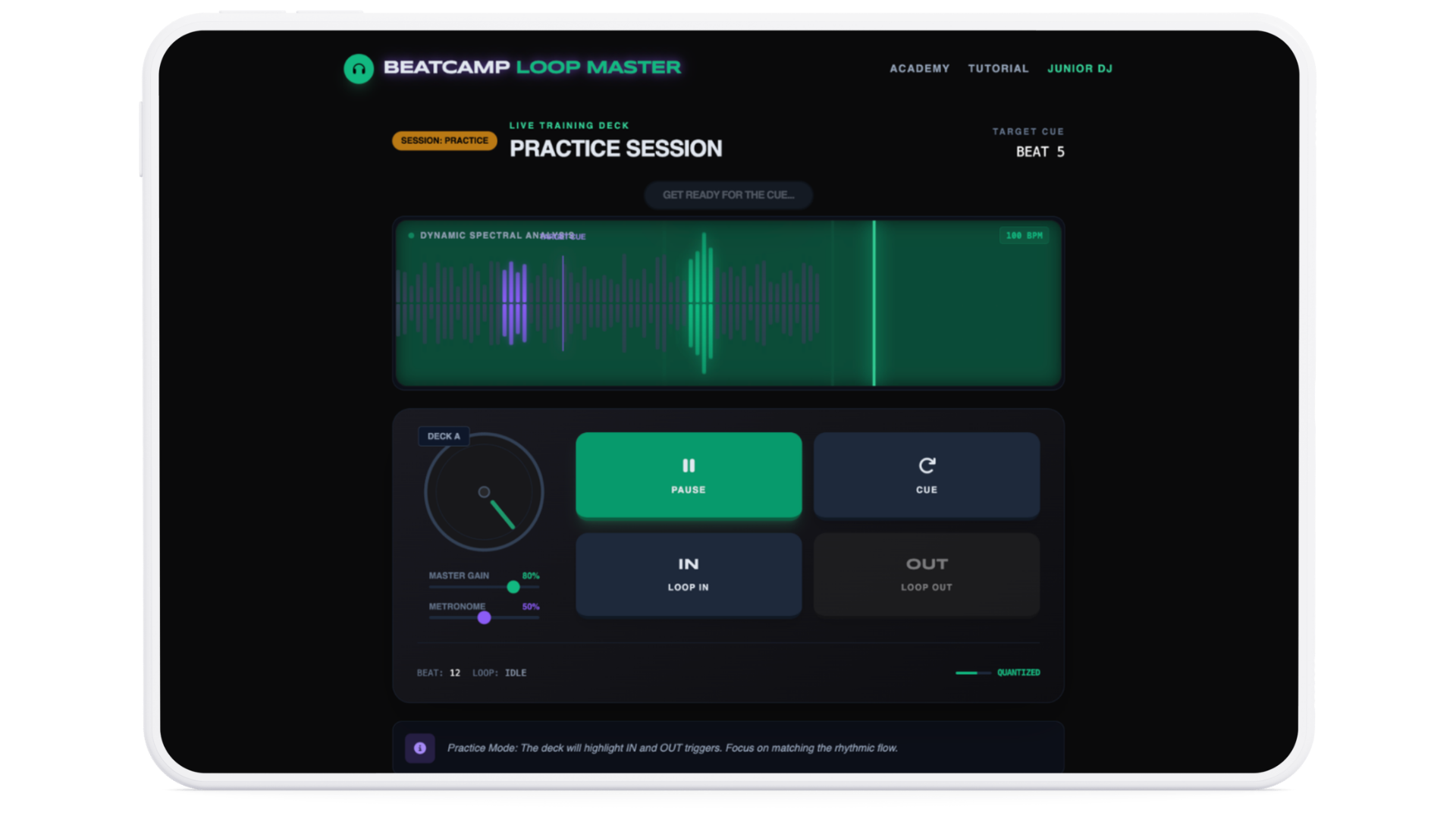
LOOPMASTER Loop timing challenge |
Looping
Precision
Timing
|
Play Now |
|
PROBLEMBEATS DJ problem-solving |
Troubleshooting
Confidence
DJ basics
|
Play Now |